Please do not change your password in Google itself (accounts.google.com) as this will break the sync with AD
After you have logged into your Windows PC, you can change your password using the following steps.
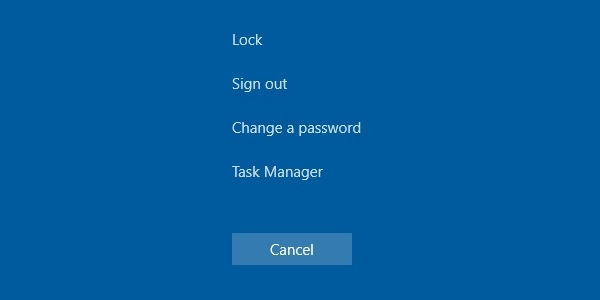
- Press CTRL-ALT-DELETE.
- The Windows Security dialog appears and click Change Password.
- The Change Password dialog box appears.
- In the Old Password box, type your current / existing password.
- In the New Password box, type your new password.
- In the Confirm New Password box, re-type your new password.
- Click OK.
If you have any questions or require assistance with changing your passwords, please do not hesitate to contact the IT Helpdesk by submitting a ticket or calling 5050 (Outside Line: 740-983-5050)
Passwords must not contain your account name or more than two consecutive characters from your full name.
- Twelve or more characters long.
- Contain characters from the following four categories:
- A through Z
- a through z
- Base 10 digits (0 through 9).
- Non-alphanumeric characters (special characters):
- '-!"#$%&()*,./:;?@[]^_`{|}~+<=>
- Can not contain any part of your name.
- The system will remember the last three passwords for each user so that they cannot be reused. After this threshold is reached passwords can be recycled if they would like for example.
Was this article helpful?
That’s Great!
Thank you for your feedback
Sorry! We couldn't be helpful
Thank you for your feedback
Feedback sent
We appreciate your effort and will try to fix the article